User guide
shrinkmail shows you what takes up space in your Gmail and helps you clean it up without worry: nothing is permanently deleted and everything can be undone for 30 days. Pick what you want to do.
Get started
- Open shrinkmail and press Connect with Google. There's nothing to install.
- Choose your account. Google asks for permission to manage your email and to save shrinkmail's settings in your Drive: tick the boxes. Without the Gmail permission nothing can be done; without the Drive one it works, but your rules and history stay only in that browser.
- While the app is in beta, Google warns that it “hasn't verified this app”. Press Continue.
Within seconds you see how many emails you have and the quick cleanups. Meanwhile, shrinkmail analyses your mailbox: it reads each email's sender, date, size and labels, never the content. Gmail lets you read about 300 emails a minute, so a large mailbox takes a while; you can use the app in the meantime and, if you close the tab, it carries on where it left off.
For security, access to Google lasts one hour. When it expires, press Connect again: it's one click and nothing already done is repeated.
Free up space quickly
On Home, the Quick cleanups group what hardly anyone misses: promotions and social network notices older than a year, old notifications, forums and emails over 10 MB. Each one says how many emails there are and how much space they take, and you don't need to wait for the analysis.
- Press Review emails to see the list. The subject opens the email in Gmail, in another tab.
- Untick the ones you want to keep. If you want to keep everything from a sender, press Leave out sender on one of their rows.
- Press Move to trash. Before doing anything it tells you how many there are and what stays where it is.
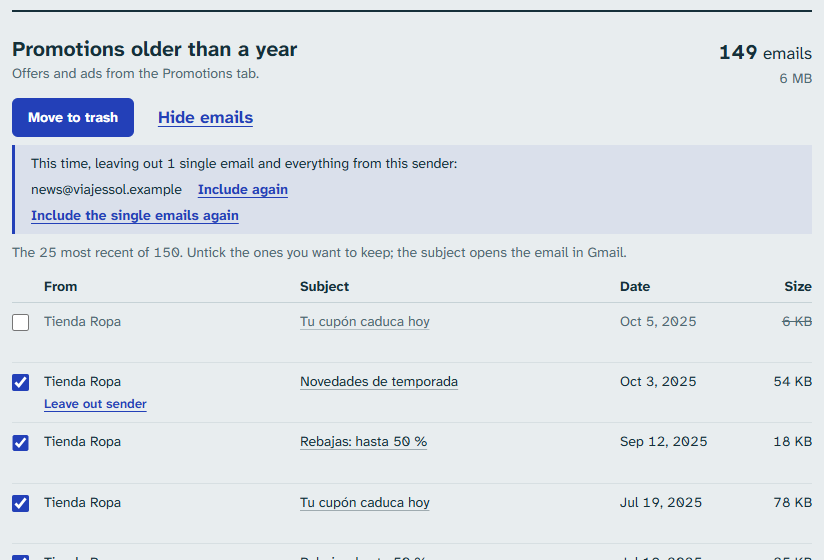
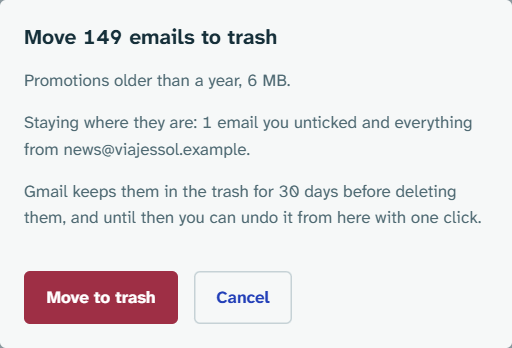
Starred, drafts and emails with your own labels are never touched, and neither are important ones unless you include them in Settings › Protections. If there are many, at most 5,000 are moved each time (you can change this in Settings › Limit per run); repeat to carry on with the rest.
The space isn't freed straight away: Gmail empties the trash after 30 days. If you need it now, empty the trash in Gmail, but then it can no longer be undone.
See what takes up the most space
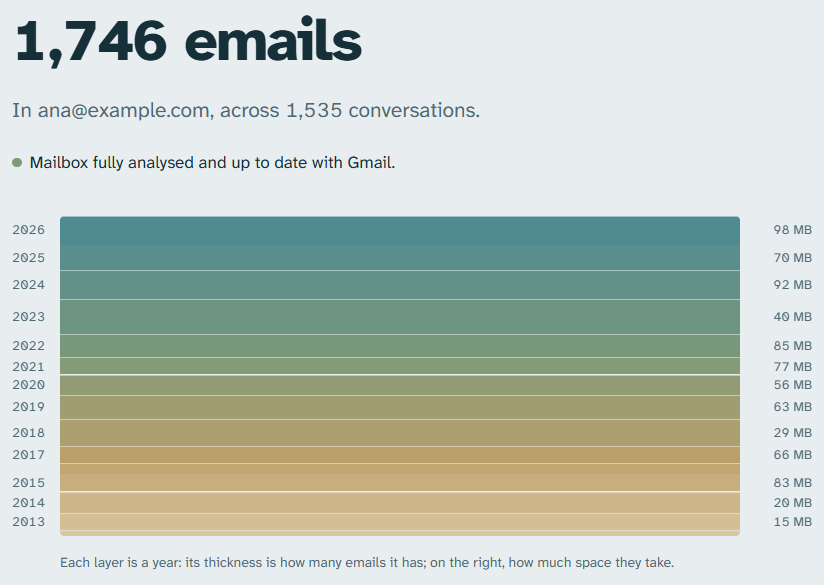
On Home, your mailbox appears layer by layer: each layer is a year, its thickness is how many emails it has and on the right is the space it takes. Next to it, Your mailbox by tab splits your emails between Primary, Promotions, Social, Updates and Forums.
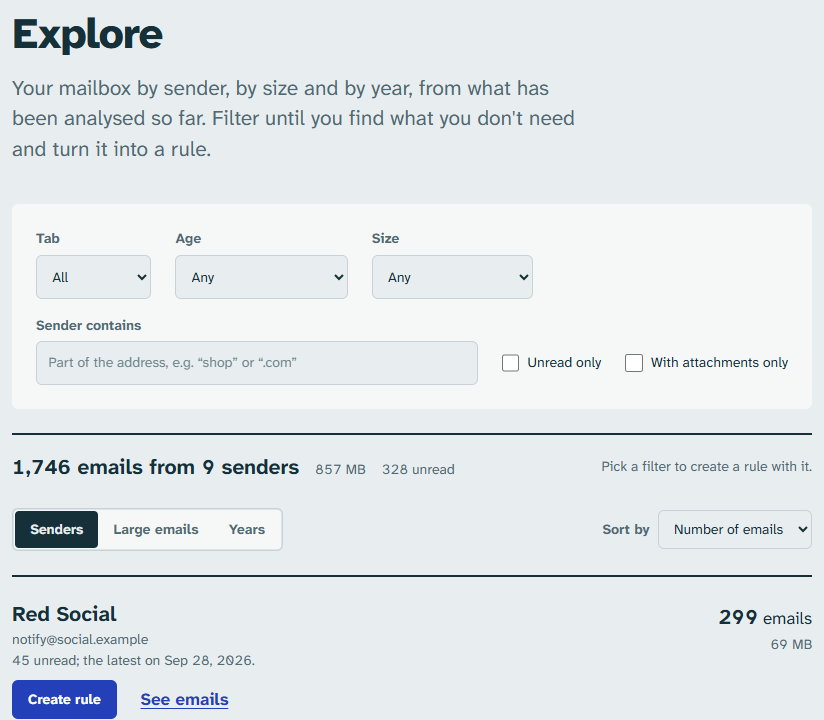
In Explore you search yourself. Choose how to view it:
- Senders: who writes to you most or who takes up most space (change Sort by).
- Large emails: the ones that take up most space, largest first.
- Years: the space each year takes.
With the Filters (tab, age, size, “Sender contains”, unread only, with attachments only) you narrow it down until you find what you don't need. From there, Create rule turns it into a rule (see Create a rule).
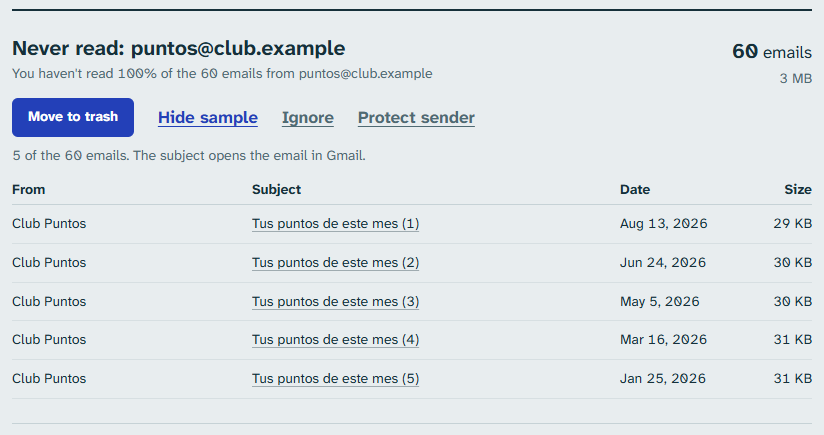
In Suggestions, shrinkmail proposes what to clean based on what it has analysed: senders you never read, unopened newsletters, old promotions or Repeated emails. Press See sample to see the emails. If you're not interested, Not now sets it aside for 90 days, Don't suggest again stops it being proposed again, and Protect sender keeps anything from touching their emails. Cleaning up a suggestion saves it as a rule, so you can repeat it whenever you like.
Create a rule
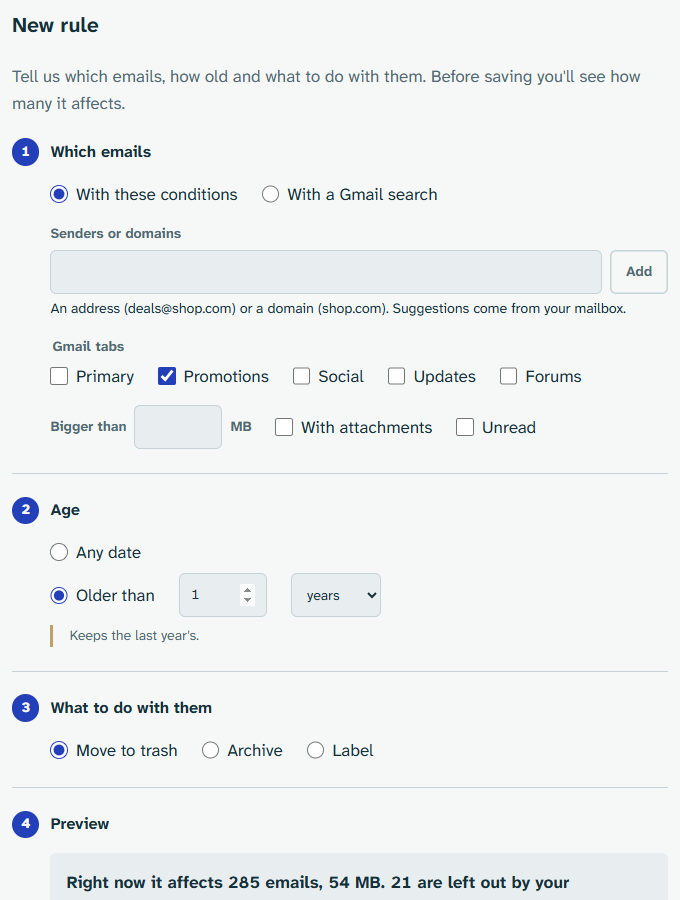
A rule saves a cleanup so you can repeat it: for example, “Promotions older than a year, to the trash”. In Rules, press Create rule and follow the steps:
- Which emails: senders or domains, Gmail tabs, size, with attachments
or unread. You can also type a search as in Gmail's search box, for example
from:shop.com has:attachment. - Age: from any date or older than a number of days, months or years.
- What to do with them: move them to the trash, archive them (they leave the inbox but stay in All Mail) or label them to review in Gmail.
- Preview: how many emails it affects right now and which ones.
- Save: the name and When it runs.
To apply it only when you want, choose Only when you apply it and use Apply now in the list. With On its own, every day or On its own, every week it applies itself, but only when you open shrinkmail and it's due: with the app closed it doesn't run. To clean up new mail even if you don't open shrinkmail, use a Gmail filter.
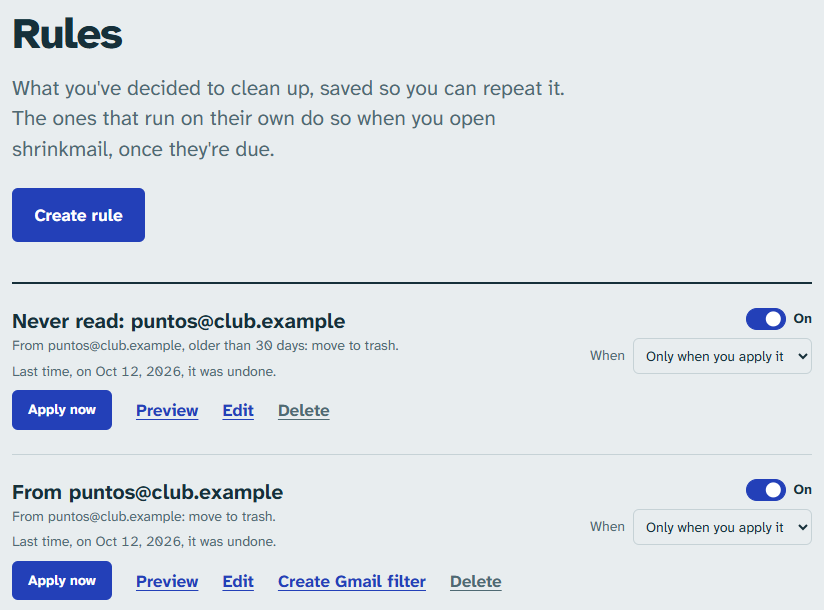
In the list you can turn a rule off with its switch, preview it, edit it or delete it. Each change can be undone from its notice.
Let Gmail filter new mail
A shrinkmail rule cleans up what you already have. For Gmail to do the same with each new email as soon as it arrives, even if you don't open shrinkmail, also create a Gmail filter:
- When saving the rule, tick Also create a Gmail filter.
- Or, on a saved rule, press Create Gmail filter.
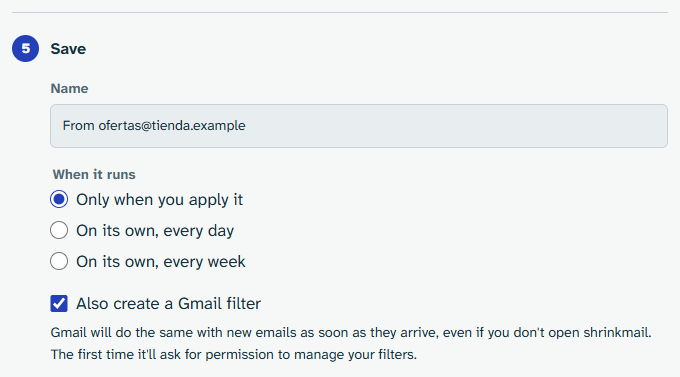
The first time, Google asks for permission to manage your filters. The filter appears in Gmail, under Settings › Filters and Blocked Addresses, where you can change or delete it. If you delete the rule in shrinkmail, the filter stays in Gmail until you delete it there.
Not every rule fits in a filter: filters act when the email arrives, so they know nothing about age, and every email arrives unread. In those cases shrinkmail tells you and the rule keeps working in shrinkmail.
Undo
Nothing is permanently deleted: what you clean goes to Gmail's trash, and Gmail keeps it for 30 days. Until then you can put it back where it was, with its labels, in several ways:
- With the Undo button on the notice shown when it finishes.
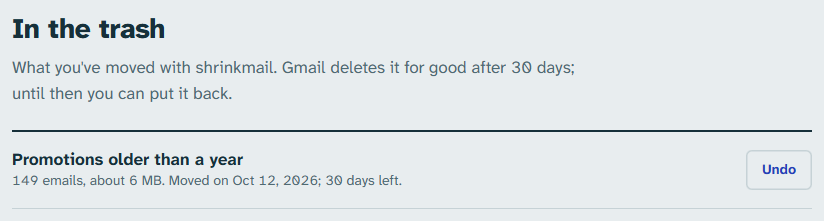
- On Home, under In the trash: what you've moved and how many days it has left.
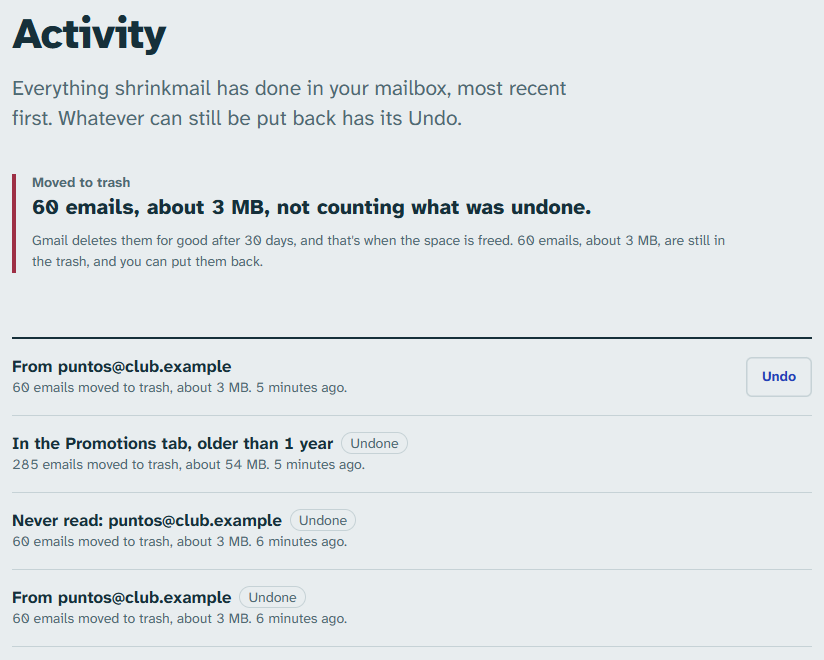
- In Activity: everything shrinkmail has done in your mailbox, most recent first, with its Undo while it's still possible.
- In the Notifications bell, at the top: this session's notifications.
Archiving and labelling can be undone too: the emails go back to the inbox or lose the label. If there are many it takes a moment; you can keep using the page and, if you like, stop it with Cancel.
Protect what you don't want touched
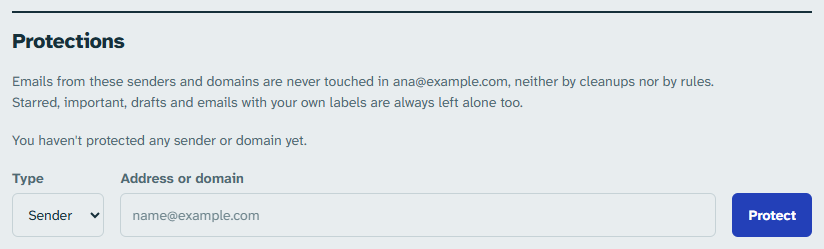
shrinkmail never touches starred, drafts or emails with your own labels. Important emails are protected by default too, but Gmail adds that mark on its own: if you don't care about it, turn it off in Settings › Protections, or just for one rule in its wizard, under Emails Gmail marks as important. On top of that, in Settings › Protections you can protect a sender ([email protected]) or a whole domain (example.com): their emails are left out of every cleanup and rule. You can also protect a sender with Protect sender in Suggestions and Explore, or with Always protect while reviewing a quick cleanup.
Several Gmail accounts
In the account menu, at the top right, press Add another Google account. From the same menu you switch between accounts. Each account has its own analysis, rules, protections and history; the Limit per run applies to all of them.
Your rules and history are saved in a private folder in each account's Drive. If you connect the same account on another computer, you find the same things. You can also take them in a file from Backup › Export to a file, in the account menu.
Your data: what is stored and how to delete it all
Your email is processed in your browser. Neither your emails nor their data go through shrinkmail's servers.
- In your browser: for each email, the sender, recipients, subject (if you have it turned on), date, size and labels. Never the content or attachments. You can stop saving the subject in Settings › Email subjects.
- In your Google Drive, in a private folder only shrinkmail can see: your settings, rules, protections, cleanup history and, if you turn it on, a copy of the analysis.
- On our servers: nothing.
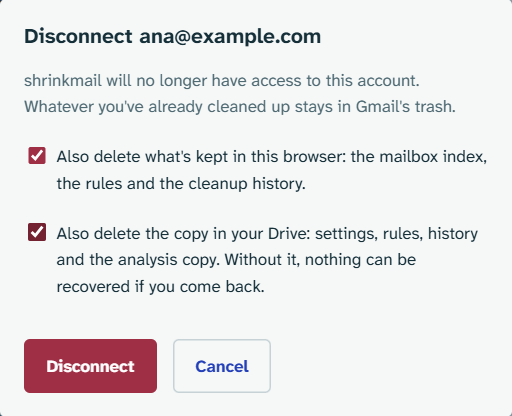
To delete everything, go to Settings › Delete your data and press Delete data for… with the account. Both boxes come ticked, what's stored in this browser and the copy in your Drive; disconnecting also removes shrinkmail's permission in Google. Your emails aren't touched: what you already cleaned stays in Gmail's trash.
If you no longer have access to shrinkmail, you can do it by hand: remove the permission at myaccount.google.com/connections, clear this site's data in your browser and, in Google Drive, under Settings › Manage apps, choose shrinkmail and Delete hidden app data. The privacy policy explains it too.
If something doesn't work
- “Connect again”
- Access to Google lasts one hour. Press Connect again: whatever was running carries on where it left off.
- “Access blocked” when connecting
- During the beta only invited accounts can get in. Ask for your Gmail address to be added.
- Google's window doesn't open
- The browser has blocked it. Allow pop-ups for this site and try again.
- “shrinkmail is already open in another tab”
- Only one tab can be open at a time. Carry on in the other one or close it and this one will continue on its own.
- In a private window it has to analyse every time
- Private windows don't keep data. Use a normal window or turn on the copy of the analysis in Drive.
- I've cleaned up and Gmail uses the same space
- What you cleaned stays in the trash for 30 days. Also, your Google account's storage is shared between Gmail, Drive and Photos.
Anything else? Write to us at [email protected].